Configuring the Virtual Machine Hardware Settings
This section shows how to configure the Virtual Machine’s hardware settings. Before starting this procedure, select the required values for your type of installation (high or low profile) and note them in the following table for reference. For the required VMware Disk Space allocation, CPU, and memory, see Hardware and Software Requirements.
Virtual Machine Configuration
|
Required Parameter |
Value |
|---|---|
|
Disk size |
|
|
Memory size |
|
|
CPU cores |
|
| ➢ | To configure the virtual machine hardware settings: |
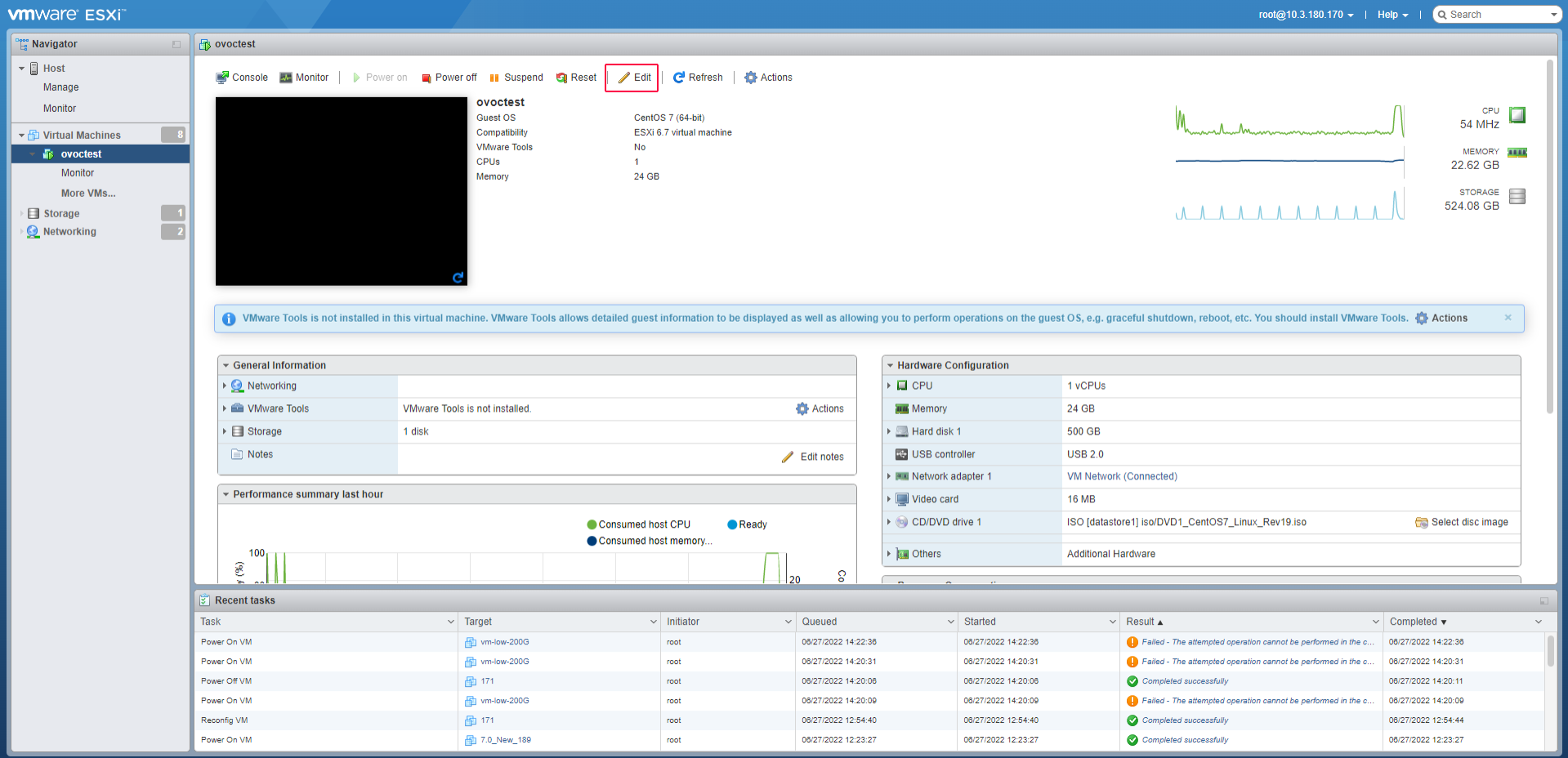
| 1. | Before powering up the machine, go to the virtual machine Edit Settings option. |
Edit Settings option
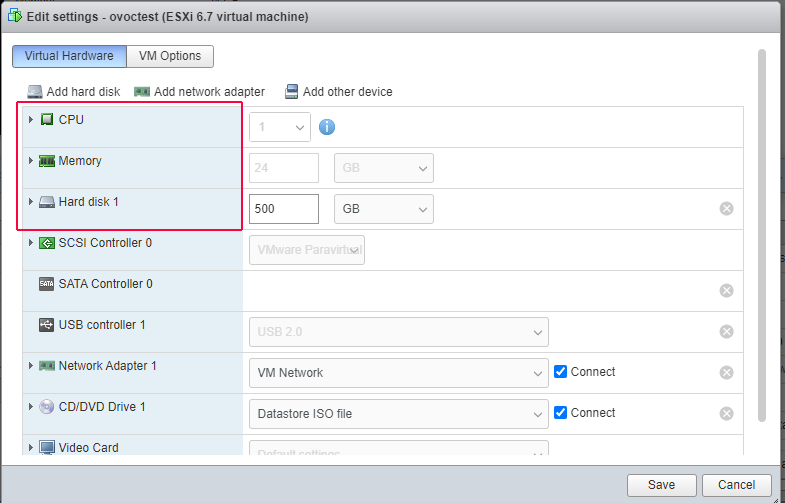
| 2. | In the CPU, Memory and Hardware tabs set the required values accordingly to the desired OVOC server VMware Disk Space allocation. ( Hardware and Software Specifications), and then click OK. |
CPU, Memory and Hard Disk Settings
| ● | Once the hard disk space allocation is increased, it cannot be reduced to a lower amount. |
| ● | If you wish to create OVOC VMs in a cluster environment supporting High Availability and you are using shared network storage, then ensure you provision a VM hard drive on the shared network storage on the cluster (Configuring OVOC Virtual Machines (VMs) in a VMware Cluster). |
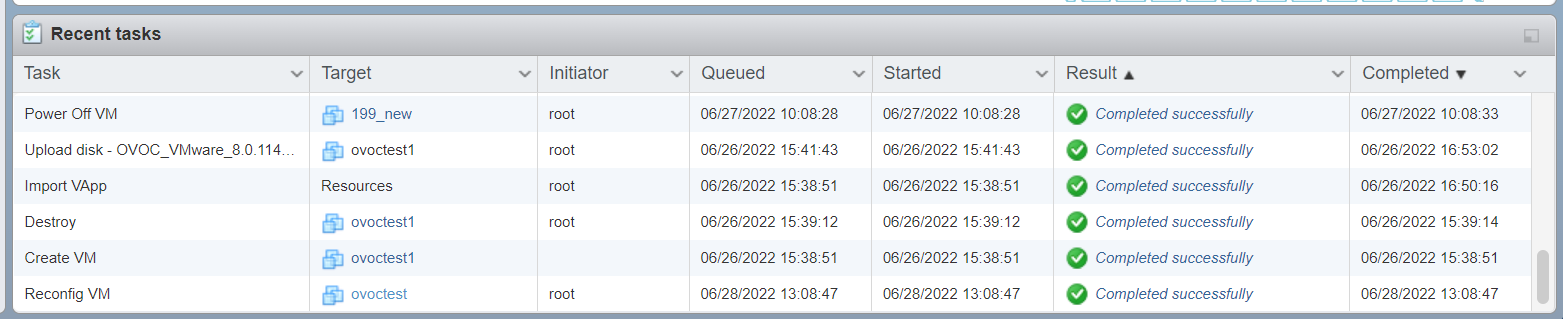
| 3. | Wait until the machine reconfiguration process has completed. |
Recent Tasks